
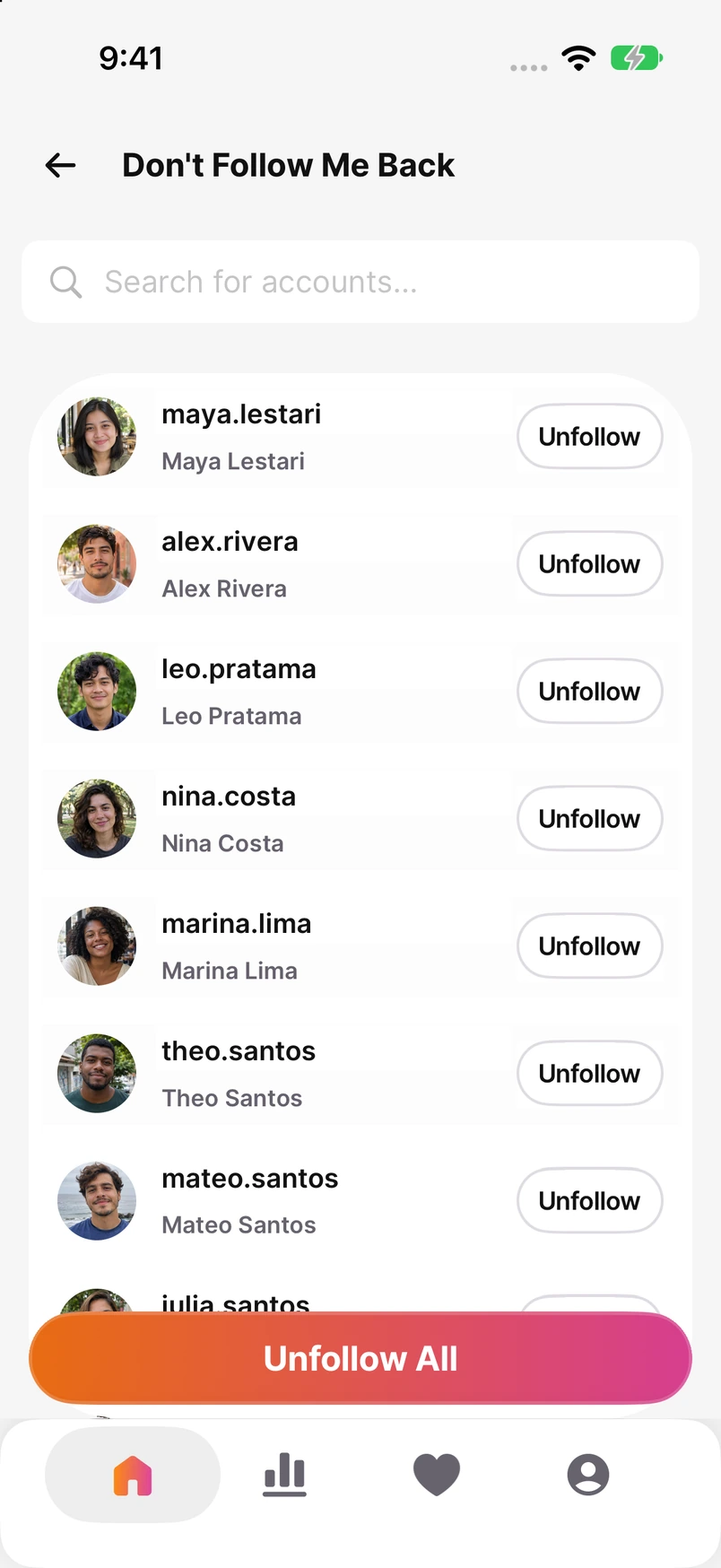

Choose the question before downloading
| What you want to check | List A | List B |
|---|---|---|
| Who doesn’t follow back | Current Following | Current Followers |
| Who disappeared from my followers | Earlier Followers | Later Followers |
Following lists the accounts you follow, and Followers lists the accounts that follow you. Someone in the first result may never have followed you. The second calculation needs two complete records of the same account from different times; one new export cannot recover an earlier list you never saved.
Only checking one person? Open your Instagram profile, tap Followers, and search their exact username. That checks whether they appear now. Our separate guides explain a single-account check and what a missing name can mean.
Check who doesn’t follow back Check who unfollowed you
Request the lists from Instagram
These iPhone steps follow Instagram’s official help, checked on 17 November 2026. Meta is moving settings from Accounts Center to Meta Account, so either name may appear.
Instagram’s export instructions
- Open your Instagram profile and the menu in the top-right corner.
- Open Meta Account or Accounts Center, then Your information and permissions.
- Choose Export your information, then Create export.
- Select the correct Instagram profile, continue, and choose Export to device.
- Choose the follower and following information in the information selector. Messages and photos are unnecessary for this comparison.
- Check the date range, file format and notification email, then start the export.
Choose a useful date range and format
Choose All time, or the broadest available period, for a complete-list comparison. This is the range of information requested, not a collection of daily follower snapshots. Save the account name and the request and download dates with the files.
If HTML and JSON are offered, choose HTML for the manual steps below: you can open it in a browser and read the usernames. Choose JSON only when your comparison tool accepts it. Renaming the extension does not convert the file.
Meta says preparing the export link can take up to 30 days. Once ready, the download window is four days. Save the ZIP, extract it into a dated folder, and keep the original so you can check your working copy later.
Turn every file into a username list
Inside the extracted archive, find the follower and following files. Names such as followers_1.html and following.html are examples, not a guaranteed folder layout. Open each file and check which list it contains.
- Open the follower HTML file in your browser. Copy the usernames into a plain-text document, one per line. Copy the account handle, not its display name. Skip dates and headings.
- If copying a whole section also copies dates or profile links, remove those lines before using the list. For a profile URL such as instagram.com/sofia.mora/, keep only sofia.mora.
- Append the names from every follower part, including any files numbered 2, 3 and beyond. Keep following names in a separate document and include all its parts too.
- Keep dots and underscores exactly as written. Check the first and last entry of each part against your working list so a missed section is easier to spot.
Manual copying takes time on a large account. JSON contains structured records rather than a ready-made spreadsheet column; use a tool that reads its actual structure, or request HTML for this method. An empty or unexpectedly short list needs a check of the selected profile, information category and remaining files before comparison.
@sofia.mora
@alex.rivera
@maya.lestari


Compare the lists in Google Sheets
Try the fictional example first. The two columns are independent lists, so names on the same row do not form a pair.
Download the sample CSV with formulas
| A · Following | B · Followers |
|---|---|
| @sofia.mora | @sofia.mora |
| @alex.rivera | @maya.lestari |
| @maya.lestari | @leo.pratama |
- On a computer, create a blank Google Sheets spreadsheet. Open File → Settings and set Locale to United States. If you see “Always use English function names”, leave it checked, then save the settings. The formulas below use English names and commas.
- To try the sample, choose File → Import, upload the downloaded CSV and replace the current blank sheet. Choose Comma as the separator. You should get five columns, A through E.
- For your own lists, start with a blank sheet and the same settings. Select columns A and B and choose Format → Number → Plain text before pasting. Put Following in A1 and Followers in B1, then paste the corresponding usernames from row 2. Text formatting preserves leading zeros in numeric usernames.
These settings apply to this spreadsheet. Google documents the import and formatting options here.
Locale and function settings Import a CSV Format cells
Name C1 “Clean A”, D1 “Clean B” and E1 “Only in A”. Paste these formulas into the indicated cells. If the imported CSV shows formula text instead of results, set C:E to Format → Number → Automatic and paste the formulas again:
=IF(TRIM(A2)="","","@"&LOWER(SUBSTITUTE(TRIM(A2),"@","")))=IF(TRIM(B2)="","","@"&LOWER(SUBSTITUTE(TRIM(B2),"@","")))Both columns receive the same cleanup: lowercase, ordinary surrounding spaces removed, and one @ prefix. Keeping @ also stops numeric usernames being compared as numbers. Dots and underscores stay intact. Each cell must already contain just a username; these formulas do not extract one from a date or profile URL.
=IF(C2="","",IF(COUNTIF($D$2:$D,C2)=0,IF(COUNTIF($C$2:C2,C2)=1,C2,""),""))Select C2:E2, then drag the small square at the selection’s bottom-right corner down to the last row of the longer input list, including any blank gaps. For the CSV sample, fill through row 6. The first COUNTIF looks for each cleaned A name in column D. The second prints an absent name only once, even if A repeats it. IF keeps blank input blank.
Your result is the nonempty cells in E. To hide the blank rows, select A1:E through your last row and choose Data → Create a filter. Open the filter in E1, deselect blanks under Filter by values, and apply it.
The answer is @alex.rivera. Sofia and Maya appear in both lists. Leo appears only in B, so he is not part of A minus B. The CSV also repeats Sofia and includes blanks; neither should create another result.
Before reusing the sheet with new lists, remove its filter and clear all old entries below the headers in A and B. Otherwise, a shorter new list can leave old names behind. Keep the formulas in C:E, paste the new lists, and fill the formulas down to cover both.
For changes over time, use the earlier follower list as A and the later follower list as B. A name in E is missing from the later record. A changed username or an account that is no longer available can also cause that difference, so check the profile before calling it a confirmed unfollow.
Use ChatGPT with two clearly labeled lists
Paste either prompt below into a chat to practice. This method supplies the data as text; it does not connect ChatGPT to Instagram. Replace the fictional lists only after you can check the sample answer.
Prompt for accounts that don’t follow back
Compare these complete username lists from the same check. Use only the supplied text. Trim surrounding spaces, lowercase usernames, give each name one leading @, and remove duplicates. Preserve dots and underscores. Return A minus B, B minus A, and each list’s unique count. Do not describe A minus B as past unfollows.

A = current Following:
@sofia.mora
@alex.rivera
@maya.lestari
@sofia.mora

B = current Followers:
@sofia.mora
@maya.lestari
@leo.pratama
Prompt for a change between two follower lists
Compare two complete Followers lists for the same Instagram account. Use only the supplied text. Trim surrounding spaces, lowercase usernames, give each name one leading @, and remove duplicates. Preserve dots and underscores. Return names in the earlier list A but absent from the later list B, names only in B, and the unique count of each list. Do not guess why or exactly when a name disappeared.

A = Followers saved on 1 November:
@sofia.mora
@alex.rivera
@maya.lestari
@sofia.mora

B = Followers saved on 17 November:
@sofia.mora
@maya.lestari
@leo.pratama
Both examples must return @alex.rivera only in A and @leo.pratama only in B, with three unique usernames in each list. Confirm every returned name against the original columns. OpenAI notes that ChatGPT can give incorrect answers; if a list or response is cut off, use the spreadsheet instead.
OpenAI: checking ChatGPT answers
You can practice without sharing any real account data. Before pasting real usernames, review Settings → Data controls in ChatGPT. There is no need to upload your entire Instagram archive for this task.
- In A, not B
@alex.rivera- In B, not A

@leo.pratama- In both lists
@sofia.mora@maya.lestari
A4 entries 3 unique names
B3 entries 3 unique names
If you want to check regularly
Save each complete follower list in a new dated folder. Downloading the same prepared export again gives you the same record, so request a fresh one for your next comparison.
For recurring reports on iPhone, Unfollowers offers current nonreciprocal reports and follower history based on the analyses it has recorded. That can save repeated spreadsheet work. The export method remains a free option for an occasional check; our app guide explains the alternatives.
Compare Instagram unfollower apps
Frequently Asked Questions
Can I do this without paying for an unfollower app?
Yes. Request the export in Instagram and compare the prepared username lists in a free Google Sheets spreadsheet. You can check one person directly in your Instagram Followers list.
Why does the formula show an error?
The example uses English function names and commas. In a new Google Sheets file, set the locale to United States and enable English function names. Check that you pasted the formula into the specified cell, including the initial equals sign.
Can I keep the whole archive on my device?
Yes. This method needs only the two username lists in the spreadsheet. Google Sheets stores the spreadsheet online; the rest of your Instagram archive can remain on your device.
Sources
- Instagram: review and export your information
- Google Sheets: COUNTIF
- Google Sheets: IF
- Google Sheets: locale and function settings
- Google Sheets: import files
- Google Sheets: cell formats
- Google Sheets: filters
- Google Sheets: TRIM
- Google Sheets: LOWER
- Google Sheets: SUBSTITUTE
- OpenAI: answer reliability
- OpenAI: Data controls